Advertisement
If you've used a Debian-based Linux system like Ubuntu, chances are you've bumped into the apt-get command, maybe during an installation guide or while trying to update your machine. It's one of those tools that feels simple once you get the hang of it, but it's doing a lot under the hood.
For new users, it can seem like just another command. For experienced users, it's part of everyday work. This article breaks it down with clear examples and plain language so you understand what it does, how to use it, and how to avoid common mistakes.
The apt-get command is a package management tool for Debian and Debian-based distributions, such as Ubuntu, Linux Mint, and Kali Linux. It's a command-line interface used to handle packages. In Linux terms, a "package" is essentially an archive that contains all the files necessary to install a piece of software, along with metadata such as dependencies, configuration files, and version information.
The command works with the Advanced Packaging Tool (APT), which is the actual backend that manages packages on your system. apt-get instructs APT on what to do. Whether installing a new application, updating your system, or deleting something you no longer need, you're generally working with packages. And apt-get is the interface between you and that system.
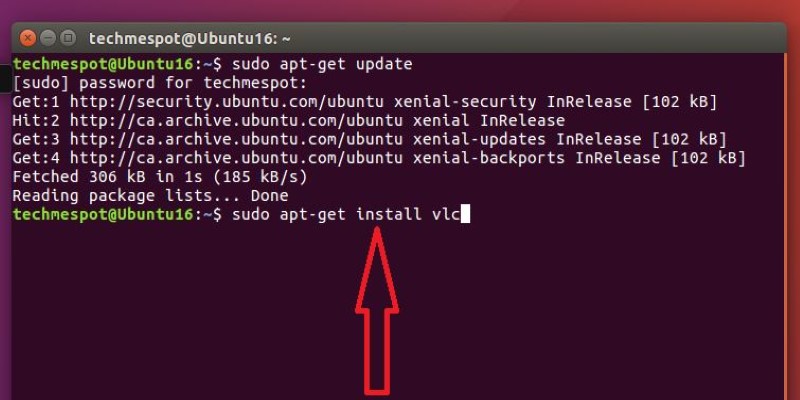
Every apt-get command follows a basic structure. You start with sudo because changing packages requires administrator permissions. Then comes apt-get, followed by an action like install, update, or remove, and then the name of the package.
Here's the general syntax:
sudo apt-get [action] [package-name]
For example, to install VLC media player:
sudo apt-get install vlc
In most cases, sudo is required because you're making changes to the system, such as installing or removing software. If you skip it, the terminal will probably remind you with a permissions error.
Let's go over the most used apt-get commands with short explanations and examples that show how they work in practice.
sudo apt-get update
This command doesn’t update the software itself—it updates the package lists from the repositories. It’s like refreshing the index so your system knows what’s available to install or upgrade. Always run this before installing or upgrading anything.
sudo apt-get upgrade
This command installs the newest versions of all currently installed packages. It uses the data fetched by apt-get update. If there are any newer versions of the installed software, this command will install them.
sudo apt-get install gimp
Installs GIMP, a graphics editing program. If GIMP depends on other packages, those will be installed automatically.
sudo apt-get remove gimp
This removes GIMP but leaves its configuration files intact. If you reinstall it later, your old settings may still be there.
sudo apt-get purge gimp
Same as remove, but it also deletes all config files related to GIMP. It's a full cleanup.
sudo apt-get clean
After installation, package files are saved locally in case you need to reinstall. clean deletes these to free up space.
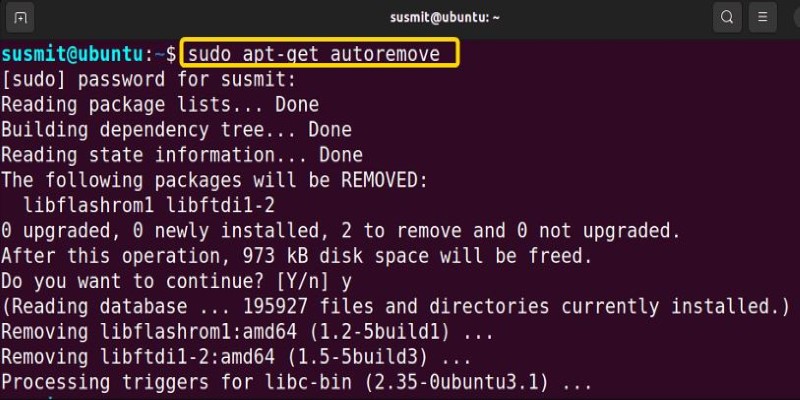
sudo apt-get autoremove
When you uninstall software, its dependencies often remain even if nothing else uses them. This command removes those leftovers.
sudo apt-get install curl wget git
This installs several packages in one command. Just separate each with a space.
sudo apt-get -s upgrade
The -s option simulates the action. It shows what would happen without making any real changes. Useful for checking before doing something major.
sudo apt-get install -f
If an install was interrupted or a package is missing a dependency, this command tries to repair the damage. The -f stands for “fix-broken.”
Using apt-get responsibly keeps your system clean, secure, and efficient. It’s easy to use it without thinking, but a few habits make a big difference.
Always Update First: Running sudo apt-get update before installing or upgrading ensures your package lists are current. Without this step, your system might miss newer versions or install outdated ones.
Check What Will Be Removed: Commands like apt-get autoremove or even remove might pull in other packages for deletion. Always read the output before confirming. Sometimes, you may find important libraries or utilities being listed.
Use -S To Preview Actions: If you're not sure what a command will do, try adding -s to simulate it. This is especially useful when removing packages or running upgrades.
Don’t Interrupt Installations: Cutting off an install or upgrade halfway can lead to broken packages. If this happens, you might need to run sudo apt-get install -f or sudo dpkg --configure -a to fix things.
Use Purge For Clean Uninstalls: If you’re not planning to use a piece of software again, use purge instead of remove so you don’t leave behind configuration clutter.
Be Careful With Sources: If you edit /etc/apt/sources.list or add custom repositories, double-check everything. Mistakes here can break updates or introduce insecure packages.
Don’t Rely Only On Apt-Get: While apt-get is solid, newer systems now favor apt, which combines apt-get, apt-cache, and other tools into a simpler command set. Still, apt-get is the foundation and remains important to know.
apt-get has been part of Linux life for a long time. It’s not just a way to install things—it’s how your system stays up to date, how software gets removed cleanly, and how problems with packages are fixed. Once you know the basic commands and when to use them, you’ll avoid common messes and keep things running smoothly. It’s simple at first glance, but the more you work with it, the more you appreciate the control it gives you. It’s worth taking the time to learn, even if most installs are just a few keystrokes long.
Advertisement

How using Xet on the Hub simplifies code and data collaboration. Learn how this tool improves workflows with reliable data versioning and shared access
How AutoGPT is being used in 2025 to automate tasks across support, coding, content, finance, and more. These top use cases show real results, not hype

How can Google’s Gemma 3 run on a single TPU or GPU? Discover its features, speed, efficiency and impact on AI scalability.

Think Bash loops are hard? Learn how the simple for loop can help you rename files, monitor servers, or automate routine tasks—all without complex scripting

How the apt-get command in Linux works with real examples. This guide covers syntax, common commands, and best practices using the Linux package manager

The paperclip maximizer problem shows how an AI system can become harmful when its goals are misaligned with human values. Learn how this idea influences today’s AI alignment efforts

How Fireworks.ai changes AI deployment with faster and simpler model hosting. Now available on the Hub, it helps developers scale large language models effortlessly

How the Open Leaderboard for Hebrew LLMs is transforming the evaluation of Hebrew language models with open benchmarks, real-world tasks, and transparent metrics
Learn how to run privacy-preserving inferences using Hugging Face Endpoints to protect sensitive data while still leveraging powerful AI models for real-world applications
How to use the ternary operator in Python with 10 practical examples. Improve your code with clean, one-line Python conditional expressions that are simple and effective
Getting the ChatGPT error in body stream message? Learn what causes it and how to fix it with 7 practical ChatGPT troubleshooting methods that actually work
How atrous convolution improves CNNs by expanding the receptive field without losing resolution. Ideal for tasks like semantic segmentation and medical imaging